
Introduction
Sometimes, your WordPress website suddenly stops working, and you can’t even log in to your dashboard. This can be very frustrating—especially if you don’t know what caused the problem.
In most cases, the issue is caused by a plugin conflict, a broken update, or a compatibility problem. When this happens, you can’t disable the plugin from inside WordPress.
Don’t worry. In this guide, you will learn how to manually disable WordPress plugins from cPanel step by step, even if you are completely locked out of your site. This method is simple, safe, and works for beginners.
Why You May Need to Disable Plugins Manually
Before we go into the steps, let’s quickly understand why this method is important.
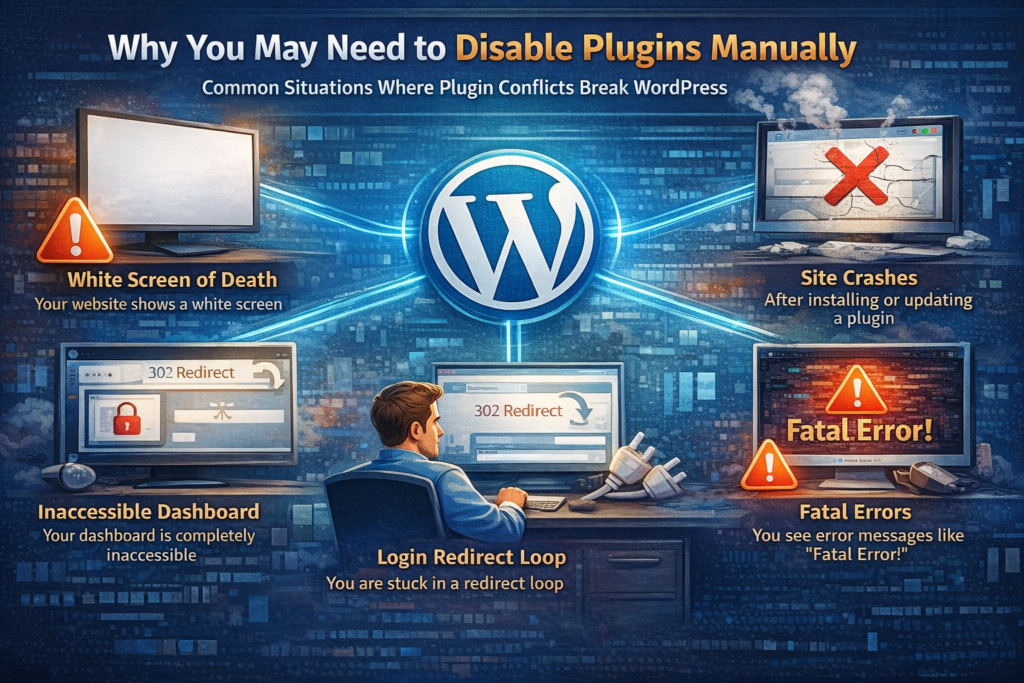
Here are common situations where you need to know how to manually disable WordPress plugins from cPanel step by step:
- Your website shows a white screen (White Screen of Death)
- You are stuck in a login redirect loop
- Your site crashes after installing or updating a plugin
- You see error messages like “Fatal Error”
- Your WordPress dashboard is completely inaccessible
I personally faced this issue once when a plugin update broke my site. I couldn’t log in at all, but using cPanel, I fixed everything in a few minutes.
What Is cPanel and Why Use It?
cPanel is a hosting control panel that allows you to manage your website files, databases, emails, and more.
Even if your WordPress dashboard is not working, you can still access your website files through cPanel. That’s why learning how to manually disable WordPress plugins from cPanel step by step is very useful.
How to Manually Disable WordPress Plugins from cPanel Step by Step
Now let’s get to the main part. Follow these steps carefully.
Step 1: Login to Your cPanel
First, you need to access your hosting control panel.
- Go to: yourwebsite.com/cpanel
- Enter your username and password
- Click Log in
Tip: If you don’t know your login details, check your hosting email.
Step 2: Open File Manager
After logging in:
- Find the File Manager option
- Click to open it
- You will see all your website files here
Step 3: Go to Your Website Folder
Now navigate to your WordPress installation folder:
- Open public_html (this is where your site is usually installed)
- Then open the folder named wp-content
Step 4: Open Plugins Folder
Inside wp-content:
- Click on the plugins folder
- Here, you will see all installed plugins
This is the most important step in how to manually disable WordPress plugins from cPanel step by step.
Step 5: Disable the Problematic Plugin
Now, find the plugin that is causing the issue.
To disable it:
- Right-click on the plugin folder
- Click Rename
- Add something like -disabled at the end
Example:
contact-form-7 → contact-form-7-disabled
As soon as you rename it, WordPress will automatically disable the plugin.
Step 6: Check Your Website
After renaming:
- Open your website in a browser
- Refresh the page
In most cases, your site will start working again.
This is why knowing how to manually disable WordPress plugins from cPanel step by step is so powerful.
Step 7: Find the Faulty Plugin
Once your site is back:
- Go to WordPress dashboard
- Reactivate plugins one by one
- Check which plugin causes the issue
After finding it, you can:
- Update it
- Replace it
- Or delete it
Alternative Method: Disable All Plugins at Once
If you don’t know which plugin is causing the issue, you can disable all plugins at once.
Steps:
- Go to wp-content
- Rename the plugins folder to plugins-disabled
This will deactivate all plugins instantly.
Then:
- Rename it back to plugins
- Activate plugins one by one
This method is also part of how to manually disable WordPress plugins from cPanel step by step and is very useful in emergency situations.
Common Mistakes to Avoid
When following this method, be careful of these mistakes:
- Don’t delete plugin folders (you may lose data)
- Don’t rename random folders
- Don’t panic and make too many changes at once
Always take a backup if possible.
Pro Tips for Beginners
Here are some helpful tips from experience:
- Always install plugins from trusted sources
- Don’t install too many plugins
- Keep plugins updated
- Use a backup plugin regularly
Learning how to manually disable WordPress plugins from cPanel step by step can save you a lot of stress in the future.
Frequently Asked Questions (FAQs)
Will disabling a plugin delete my data?
No, renaming a plugin folder only disables it. Your data remains safe.
Can I disable multiple plugins?
Yes, you can disable all plugins by renaming the plugins folder.
What if my site still doesn’t work?
Then the issue might be with your theme or database. You may need further troubleshooting.
Conclusion
Now you fully understand how to manually disable WordPress plugins from cPanel step by step and fix your website even when you are locked out of your dashboard.
This method is simple, beginner-friendly, and extremely useful when your site crashes due to plugin issues.
Whenever your website breaks, don’t panic—just follow these steps, and you’ll be back in control in minutes.How to Manually Disable WordPress Plugins from cPanel Step by Step (Complete Guide 2026)